
- Before you begin
- Getting started
- Integrations
- Working with process apps
- Working with dashboards and charts
- Working with process graphs
- Working with Discover process models and Import BPMN models
- Showing or hiding the menu
- Context information
- Export
- Filters
- Sending automation ideas to UiPath® Automation Hub
- Tags
- Due dates
- Compare
- Conformance checking
- Root cause analysis
- Simulating automation potential
- Triggering an automation from a process app
- Viewing Process data
- Creating apps
- Loading data
- Customizing process apps
- Publishing Dashboards
- App templates
- Additional resources
- Out-of-the-box Tags and Due dates
- Editing data transformations in a local environment
- Setting up a local test environment
- Designing an event log
- Extending the SAP Ariba extraction tool
- Performance characteristics


Process Mining user guide
Export
Introduction
The information on dashboards can be exported to use for reporting.
Exporting a chart as PNG
The Export as.png option is available in dashboard charts and process graphs. Follow these steps to export a chart.
- Go to the chart, or process graph, you want to export.
- Select Export -> Export as .png from the menu.
The chart or process graph is downloaded and saved as a .PNG file to your computer. The exported .PNG file contains an image of the chart or process graph as displayed.
Exporting a chart as CSV
The Export as.csv option is available in all dashboard charts. Follow these steps to export a chart to csv.
Export to .csv is not available for process graphs.
- Go to the chart you want to export.
- Select Export -> Export as .csv from the menu.
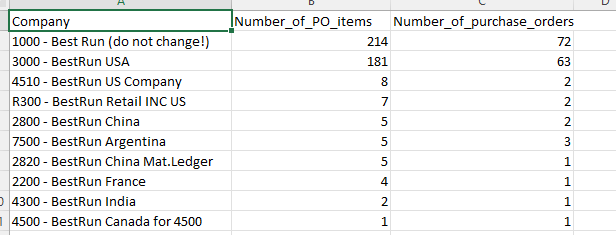
The chart is downloaded and saved as a .CSV file to your computer. It contains all the data rows used in the chart. The following illustration shows an example.
The export is limited to 1000 rows.
Exporting a process graph as BPMN
You can export a process graph as a Business Process Model Notation (BPMN) 2.0 file. You can import the file in a BPMN modeler, for example BPMN.iO.
Follow these steps to export a process graph as a BPMN 2.0 diagram.
- Go to the process graph you want to export as BPMN.
- Select Export -> Export as BPMN 2.0 diagram.
The process graph is exported and saved as a .bpmn file.