
- Getting started
- Best practices
- Tenant
- About the Tenant Context
- Searching for Resources in a Tenant
- Managing Robots
- Connecting Robots to Orchestrator
- Setup Samples
- Storing Robot Credentials in CyberArk
- Setting up Attended Robots
- Setting up Unattended Robots
- Storing Unattended Robot Passwords in Azure Key Vault (read-only)
- Storing Unattended Robot Credentials in HashiCorp Vault (read-only)
- Deleting Disconnected and Unresponsive Unattended Sessions
- Robot Authentication
- Robot Authentication With Client Credentials
- SmartCard Authentication
- Audit
- Resource Catalog Service
- Folders Context
- Automations
- Processes
- Jobs
- Triggers
- Logs
- Monitoring
- Queues
- Assets
- Storage Buckets
- Orchestrator testing
- Other Configurations
- Integrations
- Classic Robots
- Host administration
- Organization administration
- Troubleshooting
Setup Samples
This page describes a mapping between a couple of various real-life scenarios and the corresponding Orchestrator setup done in classic folders.
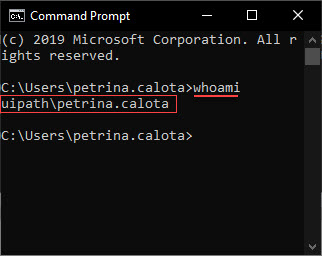
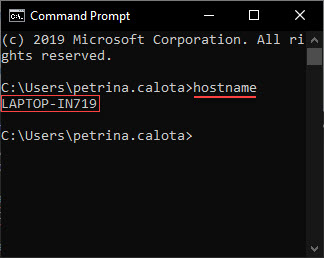
Before proceeding to the mapping, read first how to find the username (and domain if the case) you are logged on to your machine with, and how to find the name of the machine itself.
| Finding the User Name | Finding the Machine Name |
|---|---|
|
To display the domain and username, follow the next steps:
|
To display the name of the machine, follow the next steps:
|

In classic folders, you can only configure floating setups of type attended. For unattended floating setups, migrate to modern folders.
Illustrative Scenarios
1 User/Machine Combination
John was provided a laptop by the company he works for, on which he works day after day.
He logs in on his laptop with using his credentials.
The unique identifier (machine name) of the laptop is JOSMITH.
| Real-Life Setup |
|---|
| 1 User 1 Machine 1 user/machine combination - stays the same day after day. |
| Orchestrator Floating Setup |
|---|
| One machine template. Its name is not relevant. One floating robot for the user. The robot is identified by John (using the domain\username syntax).John connects his UiPath Robot to Orchestrator using the key generated by the machine template. |
| Orchestrator Standard Setup |
|---|
| One standard machine defined using the exact name of John's workstation, namely JOSMITH. One standard robot for the user/machine combination. The robot is identified by John (using the domain\username syntax), and John's machine (using the standard machine entity created above).John connects his UiPath Robot to Orchestrator using the key generated by the standard machine named JOSMITH. |
2 User/Machine Combinations
Boris and Vadim work as call center operators. They work in 2 shifts on the same computer.
They each log in on the computer using their credentials.
The unique identifier of the laptop is PC345.
| Real-Life Setup |
|---|
| 2 Users 1 Machine 2 user/machine combinations - stay the same day after day: {(Boris - PC345), (Vadim - PC345) |
| Orchestrator Floating Setup |
|---|
| One machine template. Its name is not relevant. Two floating robots. Both Vadim and Boris connect their UiPath Robots to Orchestrator using the key generated by the machine template. |
| Orchestrator Standard Setup |
|---|
|
One standard machine defined using the exact name of the workstation, namely PC345. Two standard robots, one for each user/machine combination.
Both Vadim and Boris connect their UiPath Robots to Orchestrator using the key generated by the standard machine named PC345. Each standard robot needs to be defined using the respective standard machine. To retain the Type and Machine fields while creating the robots, enable the Create Another check box. Alternatively, for an already existing robot click More Actions > Duplicate. |
3 User/Machine Combinations
Randy, Kanye and Juanita work on virtual machines, on persistent virtual desktop images which are delivered to their endpoint devices over a network. Each of them uses the same VM day after day.
They each log in on the VMs using their credentials.
The unique identifiers of the VMs are: RAND32,KAN43 and JUA65.
| Real-Life Setup |
|---|
| 3 Users 3 Machines 3 user/machine combination which stay the same day after day: {(Randy - RAND32), (Kanye - KAN43), (Juanita - JUA65) |
| Orchestrator Floating Setup |
|---|
| One machine template. Its name is not relevant. Three floating robots. Each user connects their UiPath Robots to Orchestrator using the key generated by that same machine template. |
| Orchestrator Standard Setup |
|---|
|
Three standard machines defined using the exact name of the workstations, namely RAND32,KAN43 and JUA65. Three standard robots, each for one user/machine combination.
Each user connects their UiPath Robots to Orchestrator using the key generated by the standard machine with the same name as their workstation. Each standard robot needs to be defined using the respective standard machine. To retain the Type and Machine fields while creating the robots, enable the Create Another check box. Alternatively, for an already existing robot click More Actions > Duplicate. |
9 User/Machine Combinations
Ion, Sandu and Georgeta work on virtual machines, on non-persistent virtual desktop images which are delivered to their endpoint devices over a network. Each day, they are arbitrarily assigned to a VM from a pool 3 VMs.
They each log in on the VMs using their credentials.
The unique identifiers of the VMs are: VM10,VM11,VM12.
| Real-Life Setup |
|---|
| 3 Users 3 Machines 9 user/machine combinations which are random {(Ion - VM10), (Ion - VM11), (Ion - VM12), (Sandu - VM10), (Sandu - VM11), (Sandu - VM12), (Georgeta - VM10), (Georgeta - VM11), (Georgeta - VM12)} |
| Orchestrator Floating Setup |
|---|
| One machine template. Its name is not relevant. Three floating robots. Each user connects their UiPath Robots to Orchestrator using the key generated by that same machine template. |
| Orchestrator Standard Setup |
|---|
|
Three standard machines defined using the exact name of the workstations, namely VM10,VM11,VM12. Nine standard robots, each for one user/machine combination.
Each user connects their UiPath Robots to Orchestrator using the key generated by the standard machine with the same name as their VM. Each standard robot needs to be defined using the respective standard machine. To retain the Type and Machine fields while creating the robots, enable the Create Another check box. Alternatively, for an already existing robot click More Actions > Duplicate. |