- Getting Started
- Setup and Configuration
- Automation Projects
- Dependencies
- Types of Workflows
- Control Flow
- File Comparison
- Automation Best Practices
- Source Control Integration
- About Version Control
- Managing Projects With TFS
- Managing Projects With SVN
- Workflow Diff
- The Source Control Panel
- Debugging
- Logging
- The Diagnostic Tool
- Workflow Analyzer
- About Workflow Analyzer
- ST-NMG-001 - Variables Naming Convention
- ST-NMG-002 - Arguments Naming Convention
- ST-NMG-004 - Display Name Duplication
- ST-NMG-005 - Variable Overrides Variable
- ST-NMG-006 - Variable Overrides Argument
- ST-NMG-008 - Variable Length Exceeded
- ST-NMG-009 - Prefix Datatable Variables
- ST-NMG-011 - Prefix Datatable Arguments
- ST-NMG-012 - Argument Default Values
- ST-NMG-016 - Argument Length Exceeded
- ST-NMG-017 - Class name matches default namespace
- ST-DBP-002 - High Arguments Count
- ST-DBP-003 - Empty Catch Block
- ST-DBP-007 - Multiple Flowchart Layers
- ST-DPB-010 - Multiple instances of [Workflow] or [Test Case]
- ST-DBP-020 - Undefined Output Properties
- ST-DBP-021 - Hardcoded Timeout
- ST-DBP-023 - Empty Workflow
- ST-DBP-024 - Persistence Activity Check
- ST-DBP-025 - Variables Serialization Prerequisite
- ST-DBP-027 - Persistence Best Practice
- ST-DBP-028 - Arguments Serialization Prerequisite
- ST-USG-005 - Hardcoded Activity Properties
- ST-USG-009 - Unused Variables
- ST-USG-010 - Unused Dependencies
- ST-USG-014 - Package Restrictions
- ST-USG-017 - Invalid parameter modifier
- ST-USG-020 - Minimum Log Messages
- ST-USG-024 - Unused Saved for Later
- ST-USG-025 - Saved Value Misuse
- ST-USG-026 - Activity Restrictions
- ST-USG-027 - Required Packages
- ST-USG-028 - Restrict Invoke File Templates
- ST-USG-032 - Required Tags
- ST-USG-034 - Automation Hub URL
- Variables
- Arguments
- Imported Namespaces
- Coded automations
- Introduction
- Registering custom services
- Before and After contexts
- Generating code
- Generating coded test case from manual test cases
- Troubleshooting
- Trigger-based Attended Automation
- Object Repository
- The ScreenScrapeJavaSupport Tool
- Extensions
- About extensions
- SetupExtensions tool
- UiPathRemoteRuntime.exe is not running in the remote session
- UiPath Remote Runtime blocks Citrix session from being closed
- UiPath Remote Runtime causes memory leak
- UiPath.UIAutomation.Activities package and UiPath Remote Runtime versions mismatch
- The required UiPath extension is not installed on the remote machine
- Screen resolution settings
- Group Policies
- Cannot communicate with the browser
- Chrome extension is removed automatically
- The extension may have been corrupted
- Check if the extension for Chrome is installed and enabled
- Check if ChromeNativeMessaging.exe is running
- Check if ComSpec variable is defined correctly
- Enable access to file URLs and Incognito mode
- Multiple browser profiles
- Group Policy conflict
- Known issues specific to MV3 extensions
- List of extensions for Chrome
- Chrome Extension on Mac
- Group Policies
- Cannot communicate with the browser
- Edge extension is removed automatically
- The extension may have been corrupted
- Check if the Extension for Microsoft Edge is installed and enabled
- Check if ChromeNativeMessaging.exe is running
- Check if ComSpec variable is defined correctly
- Enable access to file URLs and InPrivate mode
- Multiple browser profiles
- Group Policy conflict
- Known issues specific to MV3 extensions
- List of extensions for Edge
- Extension for Safari
- Extension for VMware Horizon
- Extension for Amazon WorkSpaces
- SAP Solution Manager plugin
- Excel Add-in
- Studio testing
- Troubleshooting
- About troubleshooting
- Assembly compilation errors
- Microsoft App-V support and limitations
- Internet Explorer X64 troubleshooting
- Microsoft Office issues
- Identifying UI elements in PDF with Accessibility options
- Repairing Active Accessibility support
- Validation of large Windows-legacy projects takes longer than expected


Studio user guide
The Source Control Panel
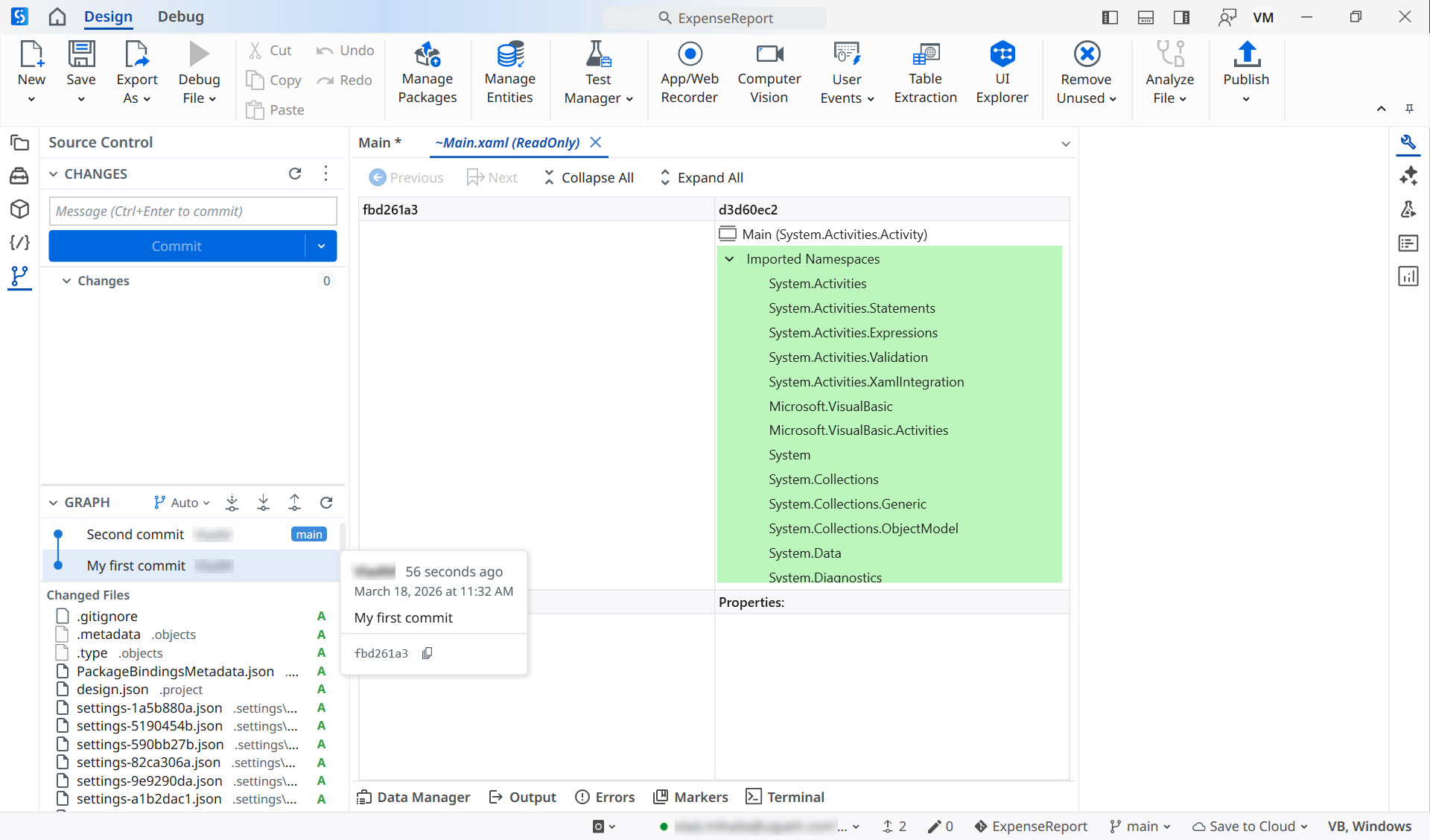
The Source Control panel provides a complete Git workflow inside Studio. The panel is available whenever a project that belongs to a Git repository is open. It is docked to the left of the designer together with other panels (Explorer, Activities, Snippets, etc.).
The Source Control panel works only with Git repositories. Projects managed with TFS and SVN are still managed from the Team backstage tab.
The first time you open the panel, you are instructed to initialize a local Git repository. This step is mandatory and is performed automatically by selecting the Initialize Repository button.
The panel contains two distinct sections:
- Changes: Lists all files that have been modified, added, deleted, or renamed in the working tree and hosts the commit controls.
- Graph: Renders the repository's commit history as an interactive visual graph.
Clicking each section header collapses or expands the corresponding section. When a section is collapsed, its header displays the number of items it contains, allowing you to monitor activity at a glance.
The Changes section
The Changes section lists all pending file changes, separated into staged and unstaged groups.
Each file entry features a color-coded status letter (M – modified, A – added, D – deleted, R – renamed, U – untracked).
Hover over or right-click a file to access file-specific options:
- Open File, to open the file in the Designer panel.
- Discard Changes, to revert the file to its last committed state.
- Stage or Unstage.
- Add to .gitignore, to exclude the file from future tracking.
- Reveal in File Explorer, to open the file's location on your machine.
- Reveal in Explorer View, to open the Explorer panel.
Use the Message field to write your commit message. After writing your message, select Commit or use the CTRL + Enter keyboard shortcut. If no files are explicitly staged when you commit, all changes are staged automatically.
Select the arrow next to the Commit button to access more options:
- Commit: Commits staged changes locally.
- Commit (Amend): Adds staged changes to the most recent commit.
- Commit and Push: Commits then pushes to the remote branch.
- Commit and Sync: Commits staged changes, then pulls and pushes to sync with the remote branch.
Select the Refresh button at the top of the Changes section to reload the section.
You can also select the More options button to:
- Access the Pull, Push, and Fetch all remotes operations.
- Stage all changes.
- Open the Manage Branches window.
An ahead/behind badge next to the branch name in the toolbar shows the number of commits your local branch is ahead of and behind the remote tracking branch.
The Graph section
The Graph section renders your repository's commit history as a visual, multi-lane graph. The section displays up to 200 commits, with branch and tag labels, color-coded branch lines, and Bezier curves to illustrate merge connections.
Select the branch filter button to switch between which commits to display:
- Auto: commits on the current branch.
- All: commits across all branches.
- Commits only on a specific branch.
Separate buttons allow you to access functions such as:
- Fetch all remotes: Downloads remote changes without merging them.
- Pull: Downloads and merges remote changes into the current branch.
- Push: Uploads committed local changes to the remote branch.
You can also Refresh the section from the dedicated button.
Each row in the Graph section represents one commit. Hovering over a commit shows you the commit author, date, message, and abbreviated SHA. You can also copy the full SHA to the clipboard.
Files that have been changed are listed under the Changed files list. Right-click a file to from the list and select Compare with Previous Commit to open a diff view in the designer.
Right-clicking a commit gives you access to the following options:
- Checkout Commit: Checks out the repository at the selected commit.
- Checkout Branch: Switches to the branch associated with the selected commit.
- Cherry-Pick Commit: Applies the commit's changes to the current branch.
- Revert Commit: Creates a new commit that undoes the changes introduced by the selected commit.
- Reset Soft: Moves the branch pointer to the selected commit, keeping all subsequent changes staged.
- Reset Hard: Moves the branch pointer to the selected commit and discards all subsequent changes.
- Compare with Working Tree: Opens a diff between the commit and your current local files.
- Compare with Previous Commit: Opens a diff between the commit and its parent commit.
- Copy Commit SHA: Copies the full commit SHA to the clipboard.
Clicking a file anywhere in the Source Control panel (in the Changes area or in an expanded commit row in the Graph area) opens the diff view.