- 概述
- Document Understanding 流程
- 快速入门教程
- 框架组件
- ML 包
- 概述
- Document Understanding - ML 包
- DocumentClassifier - ML 包
- 具有 OCR 功能的 ML 包
- 1040 - ML 包
- 1040 附表 C - ML 包
- 1040 附表 D - ML 包
- 1040 附表 E - ML 包
- 1040x - ML 包
- 3949a - ML 包
- 4506T - ML 包
- 709 - ML 包
- 941x - ML 包
- 9465 - ML 包
- 990 - ML 包 - 预览
- ACORD125 - ML 包
- ACORD126 - ML 包
- ACORD131 - ML 包
- ACORD140 - ML 包
- ACORD25 - ML 包
- 银行对账单 - ML 包
- 提单 - ML 包
- 公司注册证书 - ML 包
- 原产地证书 - ML 包
- 检查 - ML 包
- 儿童产品证书 - ML 包
- CMS1500 - ML 包
- 欧盟符合性声明 - ML 包
- 财务报表 (Financial statements) - ML 包
- FM1003 - ML 包
- I9 - ML 包
- ID Cards - ML 包
- Invoices - ML 包
- 中国发票 - ML 包
- 希伯来语发票 - ML 包
- 印度发票 - ML 包
- 日本发票 - ML 包
- 装运发票 - ML 包
- 装箱单 - ML 包
- 护照 - ML 包
- 工资单 - ML 包
- 采购订单 - ML 包
- 收据 - ML 包
- 汇款通知书 - ML 包
- UB04 - ML 包
- 水电费账单 - ML 包
- 车辆所有权证明 - ML 包
- W2 - ML 包
- W9 - ML 包
- 其他开箱即用的 ML 包
- 公共端点
- 硬件要求
- 管道
- Document Manager
- OCR 服务
- 支持的语言
- 深度学习
- Insights 仪表板
- 部署在 Automation Suite 中的 Document Understanding
- 在 AI Center 独立版中部署的 Document Understanding
- 许可
- Activities (活动)
- UiPath.Abbyy.Activities
- UiPath.AbbyyEmbedded.Activities
- UiPath.DocumentProcessing.Contracts
- UiPath.DocumentUnderstanding.ML.Activities
- UiPath.DocumentUnderstanding.OCR.LocalServer.Activities
- UiPath.Intelligent OCR.Activities
- UiPath.OCR.Activities
- UiPath.OCR.Contracts
- UiPath.OmniPage.Activities
- UiPath.PDF.Activities


Document Understanding 用户指南
用户界面
Document Manager 界面包含以下面板:
- 管理栏
- 列字段
- 常规字段
- 分类字段
- 文档视图
Management bar
显示在 Document Manager 中的页面顶部。
使您能够执行多项操作:在文档之间导航、删除/还原文档、搜索/筛选文档、运行 AI 模型预测以及导入和导出文档。
以下是管理栏中的可用项目:
| 项目 | 描述 |
|---|---|
| 导航 | 在与活动筛选器匹配的文档之间导航。 在两个箭头之间显示一个计数器。它显示了与活动搜索/筛选器匹配的文档总数和当前文档的编号。 |
| 搜索 | 有两项搜索功能:
|
| 删除/还原 | 删除或还原文档。已删除的文档位于“已删除”筛选器下。 |
| 导入 | 打开“导入数据”对话框。 |
| 导出 | 打开“导出文件”对话框。 |
| 文档名称和类型 | 当前处于活动状态的文档的名称及其类型。 文档分为三种类型:
训练文档和验证文档都是训练管道使用的训练数据集的一部分。 Evaluation documents are ignored by Training Pipelines and are intended to only be used by Evaluation pipelines in AI Center. These documents are the ones that were marked as evaluation by selecting the Mark this an evaluation set checkbox in the Import data dialog box. |
| 下载 | 该选项位于文档名称旁边的下拉列表中。 .jpeg 图像的所有页面。 |
| 永久删除 | 该选项位于文档名称旁边的下拉列表中。 .pdf 及其所有 .jpeg 图像,并从数据库中删除所有元数据。 When selecting the button, a pop-up message appears asking you if you are sure you want to permanently delete the document. Choose OK to continue or Cancel to revert to the previous screen. |
| 批次名称 | 当前批次的名称。 |
| 会话名称 | 当前会话的名称。 |
| 预测 | 运行 AI 模型预测并显示结果。 配置预标记后,将在管理栏中启用该按钮。选择它,可为当前文档预标记。 |
| 设置 | Configure OCR and Prelabelling settings or access the How to... panel. |
“删除”和“永久删除”选项
Let's go a little bit deeper in understanding the difference between Delete and Permanently Delete options.
- The Delete option deletes the files, but not removing them entirely from your project. The deleted files can still be found under the deleted filter from the Search bar and restored by using the Restore option.
- The Permanently Delete option deletes the selected files without any possibility of restoring them.
搜索选项
Three search options are available in total, two are present in the management bar from the top of the page, and one is using the  icon from the bottom left side of the page.
Please note that for Forms AI only the following built-in filters are available: deleted, labelled, unlabelled.
公开的搜索功能包含两个部分:
- Search using the built-in filters: filters the documents based on the batch/category available options from the drop-down menu.
Selecting more options makes the search more restrictive. For example selecting Batch import1 and Deleted is bringing up only the documents imported in the Batch import1 which are deleted.
Take note of combinations that will always return an empty list: selecting Batch import1 and Batch import2 would never return a document since the selection is restrictive and no document can be in two batches at a time.
- Search in documents using keywords: this search bar filters the information based on a text input. You have to enter the keyword(s) as free text in the Search bar. The search looks for the keyword(s) in a document's content or the document name. Multiple words search returns results when the words are adjacent, excluding any punctuation in between them.
Alongside the two bar searches, there is also an inside the document search, identifiable by this sign.
- Search inside the document: allows you to search for instances of text solely in your current document. The search bar, , can be found at the bottom left hand side of the screen.
“设置”菜单
设置按钮有两个可用选项:
- Settings where you can configure the OCR service or Prelabelling
- How to... which has the purpose of a help menu
OCR
为了将文档导入 Document Manager,必须配置 OCR 服务。
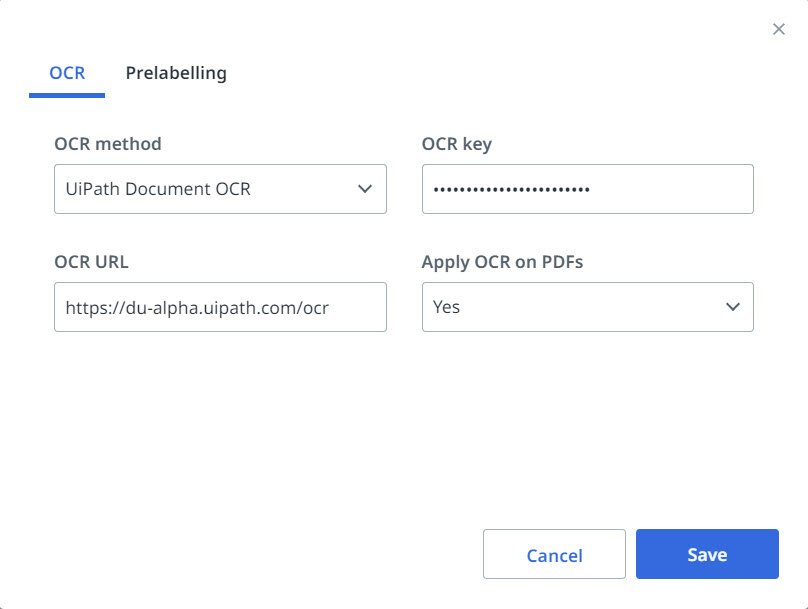
OCR 方法
This setting is available only for Document Types (Data Manager sessions) created in AI Center. When created in Document UnderstandingTM, this setting is inherited from the Project Settings. If you want to modify these settings in Document UnderstandingTM, go back to the Project view and open Project Settings from the bottom left.
基于云的选项包括:
- UiPath® Document OCR -
https://du.uipath.com/ocr; - 中文、日语和韩语 OCR
- 具有最广语言覆盖范围的 Google Cloud Vision OCR;
- 适用于读取日语文档的 Google Cloud Vision OCR(日语版);
- Microsoft Read OCR。
OCR URL
配置 OCR 时,需要 OCR 服务具有 URL。您可能会用到以下 URL:
- 公共 URL,例如
https://du.uipath.com/ocr,或来自 Google Vision OCR 或 Microsoft Read OCR 的第三方 URL
OCR 密钥
所选 OCR 引擎的相应 API 密钥。例如,对于 UiPath Document OCR,您需要使用 Document Understanding API 密钥。对于 Document Manager Cloud 和 Document Manager On-Prem Online,它是必需的。对于 Document Manager On-Prem Air-gapped,它不是必需的。
For more information, check the Cloud and on-premises usage page.
将 OCR 应用于 PDF
Establishes if the OCR process should be applied or not to PDF documents. If set to True, the OCR is applied to all PDF pages of the document. If set to False, only digitally typed text is extracted. When set to Auto evaluates if the document requires to apply the OCR algorithm depending on the input document. The default value is Auto.
预测/预加标签
如果您已经有一个模型可以提取一些需要加标签的字段,并且只有少量额外的字段需要手动加标签,则可以使用 Document Manager 的预加标签功能来节省时间。
Prelabelling merges the results of the Prelabelling endpoint, that you configure in the Prelabelling settings.
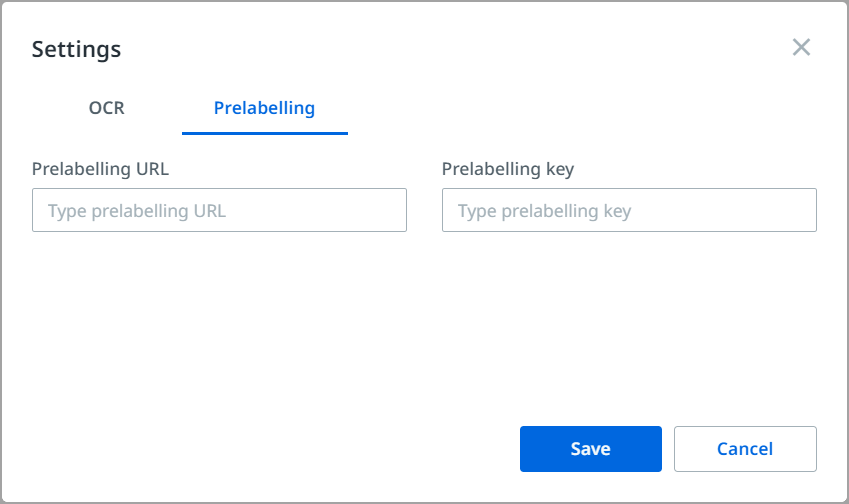
可用的选项如下:
预加标签 URL
预加标签要求 ML 模型具有 URL。查看您可以使用的以下 URL:
- Public URLs such as
https://du.uipath.com/ie/invoices or https://du.uipath.com/ie/purchase_orders. Visit Public Endpoints to check the full list of endpoints. - 已在本地部署的 AI Center 或 Cloud AI Center 中公开的 ML 技能 URL。
预加标签密钥
AI Unit/Document Understanding API 密钥。预加标签 API 密钥是技能所在组织的 Document Understanding 密钥。
Cloud Document Manager 和本地部署的 Online Document Manager 必须使用此密钥。对于本地部署的离线 Document Manager,此密钥是可选的。
如何…
The How to... option opens the Document Manager help menu.
在帮助菜单,您可以找到以下信息:
- The Document Manager version.
- 指向此文档页面的“文档”链接。
- “标签控件”部分显示处理数据时要使用的控件。
- “文档快捷方式”部分显示用于执行各种操作(例如导航和用户界面缩放)的快捷方式。
- “配置”部分显示有关在安装过程中执行的实例配置的详细信息。
标签控件
| 命令 | 描述 |
|---|---|
| 左键单击 | 选择复选框。如果与字段的热键一起使用,则会将所选信息分配给字段。 |
| 退格/删除 | 删除字段的标记值。 |
| 右击 | 显示 OCR 文本和当前标签。 |
| Enter 或反斜杠 | 对跨越多行文本的表格行进行分组或取消分组。 |
文档快捷方式
| 快捷方式 | 描述 |
|---|---|
| Alt + 向左箭头/向右箭头 | 在文档之间导航。 |
| Alt + Delete | 删除或恢复文档。 |
| Ctrl + 滚动 | 通过放大或缩小更改文档缩放比例。 |
列字段
列字段具有以下选项:
- 新建列字段

- 编辑字段

- 展开/折叠列字段值

For more details on column fields, visit this section.
常规字段
常规字段具有以下选项:
- 新建常规字段
- 编辑字段
For more details on regular fields, visit this section.
分类字段
分类字段具有以下选项:
- 新建分类字段
- 编辑字段
For more details on classification fields, visit this section.
文档视图
对于多页文档,您可以像在任何 PDF 查看器中一样自然地滚动页面。要放大或缩小,请使用 Ctrl 并滚动鼠标滚轮。
您可以通过选择文字框并按下相应的按键,将文档分配给某个字段,从而标记文档。您也可以右键单击文字框并验证提取的信息。
For more details on how to label documents, visit this page.
打开新的 Document Manager 会话或筛选器为空时,某些准则将显示在文档视图中:
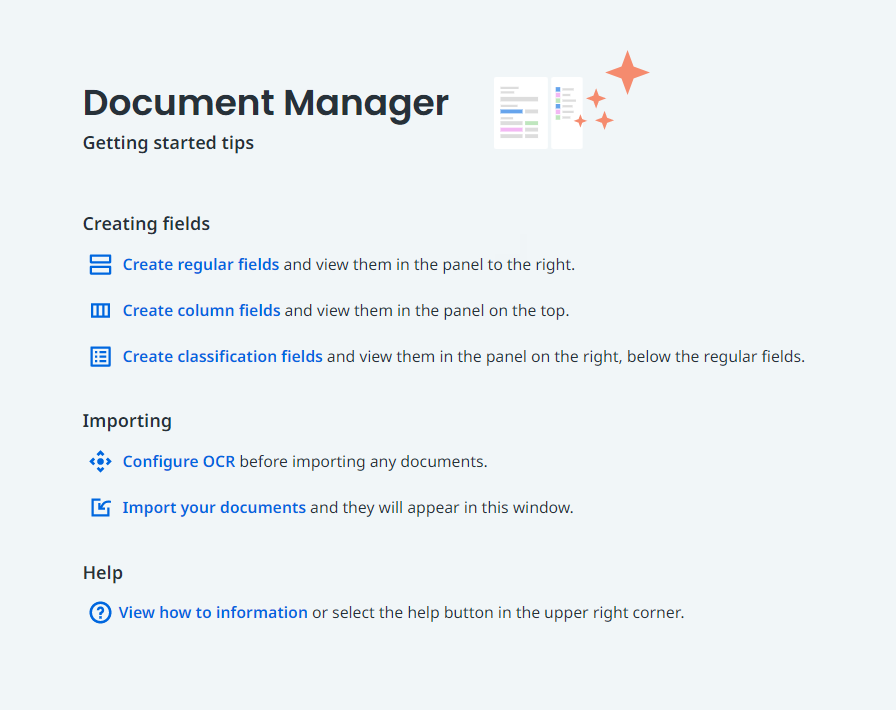
此外,文档视图中还会显示加载失败: