
- 概述
- 入门指南
- Activities (活动)
- Insights 仪表板
- Document Understanding 流程
- 快速入门教程
- 框架组件
- 模型详细信息
- 概述
- Document Understanding - ML 包
- DocumentClassifier - ML 包
- 具有 OCR 功能的 ML 包
- 1040 - ML 包
- 1040 附表 C - ML 包
- 1040 附表 D - ML 包
- 1040 附表 E - ML 包
- 1040x - ML 包
- 3949a - ML 包
- 4506T - ML 包
- 709 - ML 包
- 941x - ML 包
- 9465 - ML 包
- ACORD125 - ML 包
- ACORD126 - ML 包
- ACORD131 - ML 包
- ACORD140 - ML 包
- ACORD25 - ML 包
- 银行对账单 - ML 包
- 提单 - ML 包
- 公司注册证书 - ML 包
- 原产地证书 - ML 包
- 检查 - ML 包
- 儿童产品证书 - ML 包
- CMS1500 - ML 包
- 欧盟符合性声明 - ML 包
- 财务报表 (Financial statements) - ML 包
- FM1003 - ML 包
- I9 - ML 包
- ID Cards - ML 包
- Invoices - ML 包
- InvoicesAustralia - ML 包
- 中国发票 - ML 包
- 希伯来语发票 - ML 包
- 印度发票 - ML 包
- 日本发票 - ML 包
- 装运发票 - ML 包
- 装箱单 - ML 包
- 工资单 - ML 包
- 护照 - ML 包
- 采购订单 - ML 包
- 收据 - ML 包
- 汇款通知书 - ML 包
- UB04 - ML 包
- 水电费账单 - ML 包
- 车辆所有权证明 - ML 包
- W2 - ML 包
- W9 - ML 包
- 其他开箱即用的 ML 包
- 公共端点
- 流量限制
- OCR 配置
- 管道
- OCR 服务
- 支持的语言
- 深度学习
- 数据与安全性
- 许可和计费逻辑


Document Understanding classic user guide
创建和配置字段
Fields can be renamed. Just select the Edit field button and simply edit the name of the field at the top of the window.
如果您稍后决定不使用某些字段来训练 ML 模型,则可以将其删除,也可以始终可以使用“编辑字段”窗口中的“隐藏”复选框将其隐藏。
最多可以创建 300 个字段。
列字段
发票单据上的行项目“说明”或“单价”就是列字段的示例。
新建列字段
-
Select
 in the table section at the top of the page to add a new Column field. The Create Column Field window is displayed.
 -
在“输入唯一字段名称”字段中填写字段的唯一名称。该字段不接受大写字母。只能包含小写字母、数字、下划线
_和短划线-。 -
Select OK. The Edit Field window is displayed with the General tab open.
-
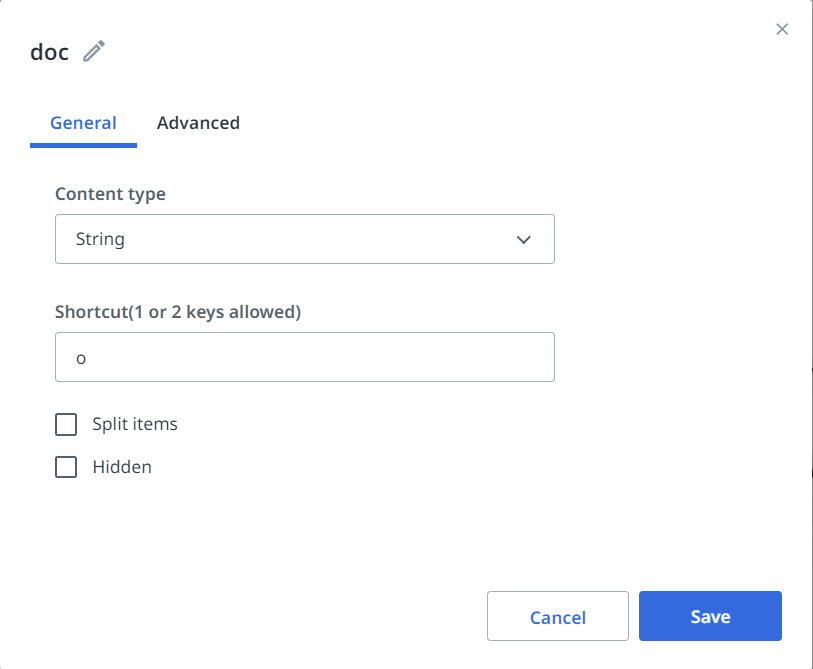
从“内容类型”下拉列表中,选择内容类型。
-
Select the Hotkey field and press a key on your keyboard to automatically populate it.
-
Select the Split items checkbox if you want this field to be used as a delimiter between line items or rows in a table. Any line on which this field appears is considered to be a new line item or row in the table. Most commonly this is used on Line Amount fields on Invoice line items. Split Items are only available for FormsAI document type columns.
-
如果您不希望此字段成为导出数据集的一部分,请选中“隐藏”复选框。
-
选择“高级”选项卡。
-
从“评分”下拉列表中,选择在运行模型预测评估时用来确定准确性的度量。
-
在“颜色”字段中,填写所需字段颜色的十六进制代码。
-
Select Save to save your settings.
编辑列字段
Select the Edit field button. The available options for column fields can be found in the following table.
| 选项 | 选项卡 | 描述 |
|---|---|---|
| 字段名称 | 不适用 | 字段的唯一名称。 _ and dash - . |
| 内容类型 | 常规 | 字段的内容类型:
|
| 快捷方式 | 常规 | 字段的快捷键。允许使用一个或两个按键。 |
| 拆分项目 | 常规 | 如果要将此字段用作表格中行项目或行之间的分隔符,请选中此复选框。出现此字段的任何行都会被视为表格中的新行项目或行。这通常用于发票行项目中的“行金额”字段。 |
| 隐藏 | 常规 | 如果您不希望此字段成为导出的数据集的一部分,请选中此复选框。 |
| 颜色 | 高级 | 字段的颜色,以十六进制格式表示。如果值无效,则生成一个新值。 |
| 计分 | 高级 | 用于在运行模型预测评估时确定准确度的方法。只能为字符串内容类型配置此选项。所有其他内容类型均使用精确匹配评分策略。选项:
|
删除列字段
要删除列字段,请执行以下步骤:
-
Select the Edit field
button corresponding to the column field you want to delete. -
Select the Delete button.
-
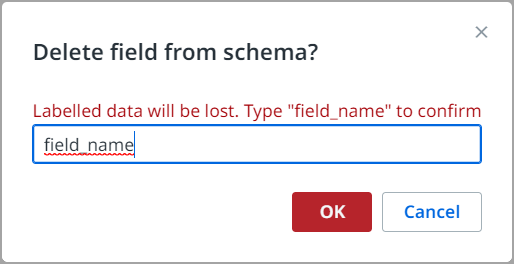
输入字段的确切名称。
-
选择“确定”。
-
列字段及其关联的带标签数据将被删除。
常规字段
这些字段在给定文档中仅出现一次。发票单据上的行项目“发票编号”或“总金额”就是列字段的示例。
新建常规字段
- Select on the right pane in the Regular Fields section. The Create Regular Field window is displayed.
- 在“输入唯一字段名称”字段中填写字段的唯一名称。该字段不接受大写字母。只能包含小写字母、数字、下划线
_和短划线-。 - Select OK. The Edit Field window is displayed with the General tab open.
- 从“内容类型”下拉列表中选择内容类型。
- Select the Shortcut field and press a key on your keyboard to automatically populate it.
- 如果要检查的字段可能跨越多个文本行,例如地址或说明,请选中“多行”复选框。如果未选择此选项,则仅返回第一行。
- Select the Multi-value checkbox for all the values detected in the document to be displayed as a list. You can either select the multi-line or the Multi-value checkbox.
- 如果您不希望此字段成为导出数据集的一部分,请选中“隐藏”复选框。
- 选择“高级”选项卡。
- 如果模型预测给定页面上某个字段的多个实例,请从“后处理”下拉列表中选择后处理机制。
- 从“评分”下拉列表中,选择在运行模型预测评估时用来确定准确性的度量。
- In the Color field, fill in the hex code of the desired field color.
- Select Save to save your settings.
编辑常规字段
Select the Edit field button. The available options for regular fields can be found in the following table.
| 选项 | 选项卡 | 描述 |
|---|---|---|
| 字段名称 | 不适用 | 字段的唯一名称。 _ and dash - . |
| 内容类型 | 常规 | 字段的内容类型:
|
| 后处理 | 高级 | 后处理机制。如果模型在给定页面上预测了某个字段的多个实例,则模型将返回:
|
| 快捷方式 | 常规 | 字段的快捷键。允许使用一个或两个按键。 |
| 多行 | 常规 | 对于可能跨多个文本行的字段(地址或说明),请选中此复选框。否则,仅返回第一行。 |
| 多值 | 常规 | 选中此复选框,以将在文档中检测到的所有值显示为列表。您可以选中“多行”或“多值”复选框。 |
| 隐藏 | 常规 | 如果您不希望此字段成为导出的数据集的一部分,请选中此复选框。 |
| 计分 | 高级 | 用于在运行模型预测评估时确定准确度的方法。只能为字符串内容类型配置此选项。所有其他内容类型均使用精确匹配评分策略。选项:
|
| 颜色 | 高级 | 字段的颜色,以十六进制格式表示。如果值无效,则生成一个新值。 |
删除常规字段
要删除常规字段,请执行以下步骤:
-
Select the Edit field
button corresponding to the regular field you want to delete. -
Select the Delete button.
-
输入字段的确切名称。
-
选择“确定”。
-
常规字段及其关联的带标签数据将被删除。
分类字段
整体上引用文档的数据点。例如,收据的“费用类型”(伙食费、住宿费、航空费、交通费)或发票的“币种”(美元、欧元和日元)就是分类字段的示例。
新建分类字段
- Select on the right pane in the Classification Fields section. The Create a new classification field window is displayed.
- 在“输入唯一字段名称”字段中填写字段的唯一名称。该字段不接受大写字母。只能包含小写字母、数字、下划线
_和短划线-。 - Select OK. The Edit Field window is displayed.
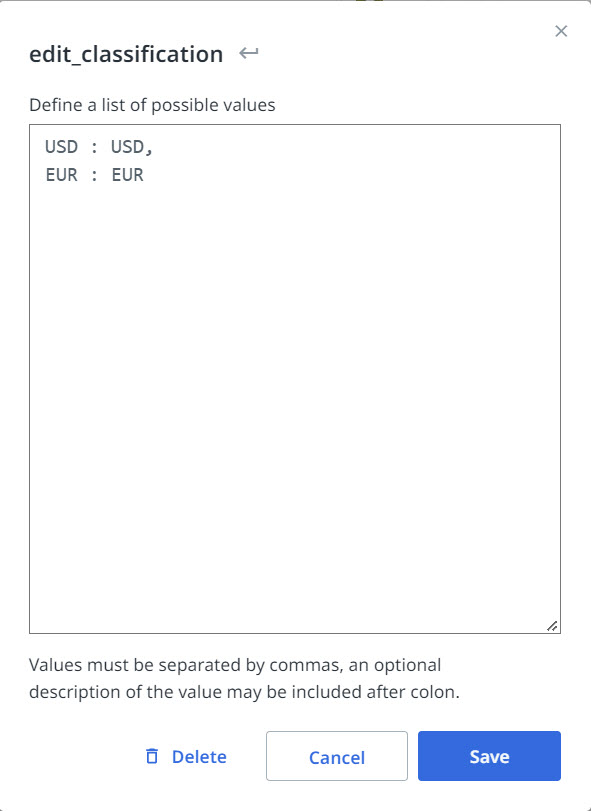
- 在文本区域中,填写类列表,然后以逗号分隔列表的形式键入名称。
- Select Save to save your settings.
编辑分类字段
Select the Edit field button. Define a list of possible values. Commas must separate values. An optional description of the value may be included after colon : (option 1 : description 1).
删除分类字段
要删除分类字段,请执行以下步骤:
-
Select the Edit field
button corresponding to the classification field you want to delete. -
Select the Delete button.
-
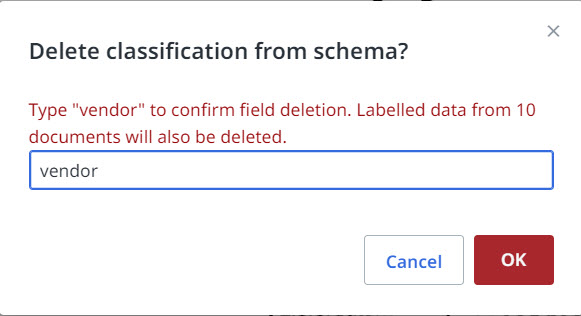
输入字段的确切名称。
-
选择“确定”。
-
分类字段及其关联的带标签数据将被删除。